To fix Google Merchant Center disapprovals, open Products, go to the Needs attention tab, work through issues in order of impact, and correct the data at its source (your store or feed) so it matches your product pages exactly. Then rewrite your feed titles and descriptions so approved products actually get matched to searches.
Disapproved products don't show in Shopping ads or free listings, so fixing them is often the quickest visibility win a store has.
I'll walk you through where the issues live in Merchant Center, the disapprovals I see most and how I fix each one, a required-attributes checklist, and before-and-after feed titles you can adapt.
Every store's catalogue, platform and feed setup is different, so I'll flag the decisions that depend on yours.
Key takeaways
- Find product issues under Products, then the Needs attention tab; account-wide issues sit behind "View setup and policy issues".
- Price and availability mismatches are the most common fix, and they start on your website, not in Merchant Center.
- Never fake identifiers: a wrong GTIN or a placeholder brand causes more trouble than a missing one.
- Fix data at the source, then re-upload; edits made only inside Merchant Center can be overwritten by the next sync.
- Feed titles can run to 150 characters, but put the details shoppers search for in the first 70.
How Merchant Center decides what shows
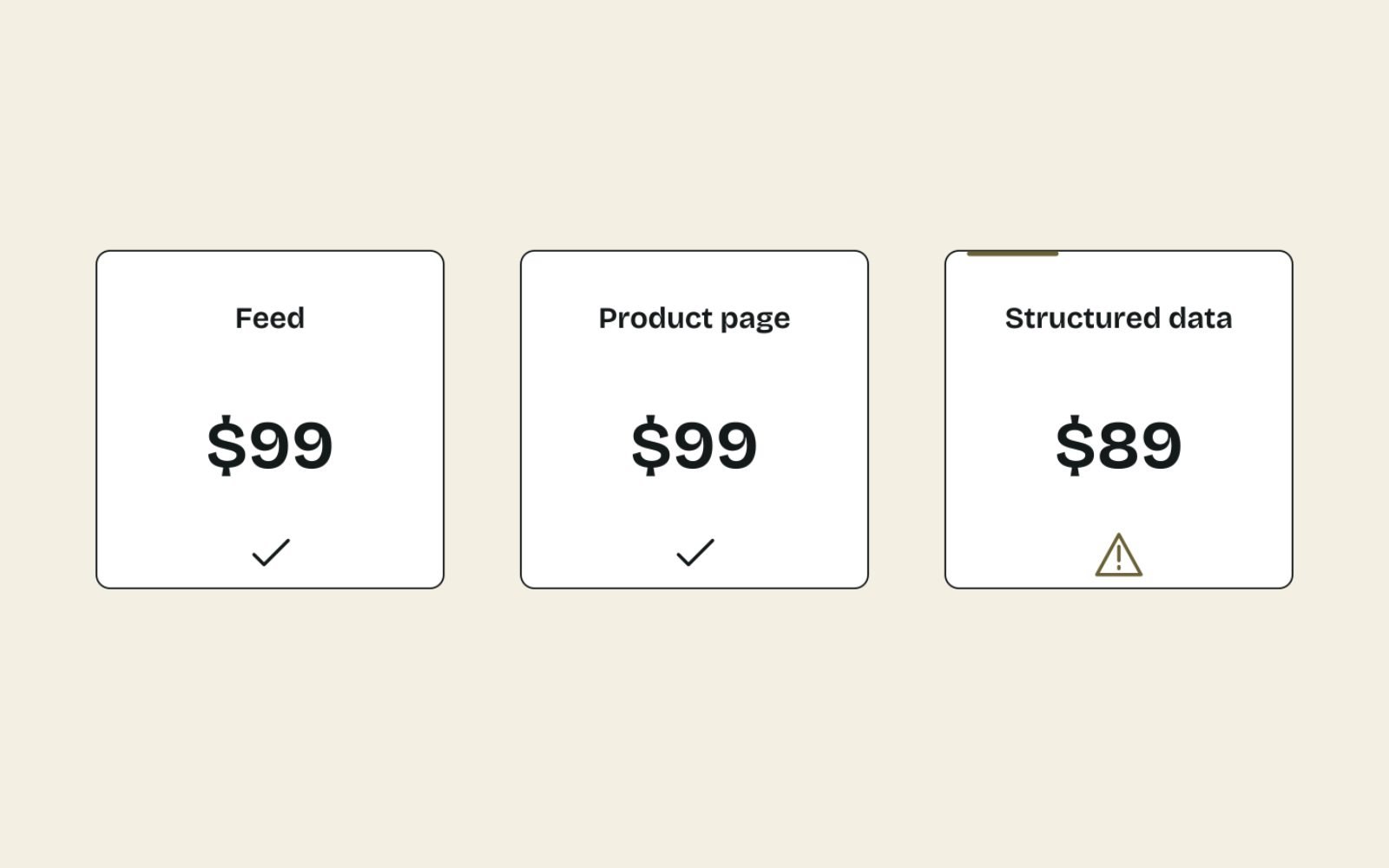
Merchant Center compares three versions of each product: the data in your feed, what's visible on your product page, and the structured data on that page. When they disagree, or a required attribute is missing, the product can be disapproved or shown with limited reach.
That's why feed problems are usually website problems in disguise. A product page with clear price, stock, shipping and returns, built along the lines I describe for product pages that rank and sell, makes most feed errors disappear.
It's worth the effort even if you don't run ads. Approved products can appear in free listings on Google at no cost, and disapproved products miss out on those as well as on Shopping ads.
Product issues versus account issues
- Product-level issues affect individual items: a mismatched price, a missing GTIN, a rejected image.
- Setup and policy issues affect the whole account: misrepresentation, missing business details, unverified website. These are more serious, because they can stop every product from showing.
Find the issues: the Needs attention tab
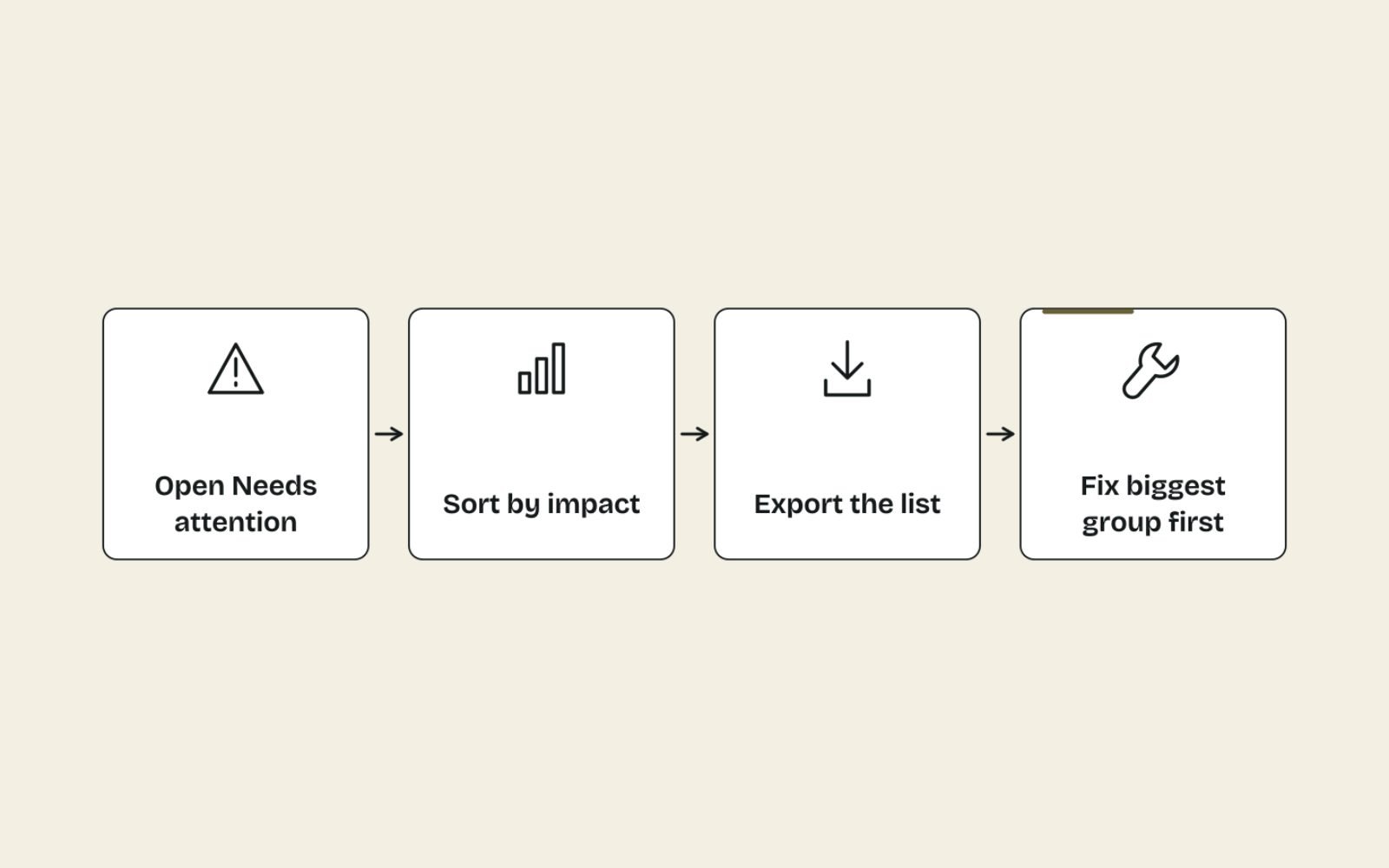
Google's help page on finding and fixing product issues sets out where everything lives. Here's the routine I follow on every audit.
- Open Products (under "Products & store") and select the Needs attention tab.
- Turn off the Prioritized fixes toggle if you want to see every issue, not just the high-impact ones.
- Review the list under "All products that need attention", using the filter to narrow by issue, impact or status.
- Download the affected products as a CSV so you can sort and assign them in a spreadsheet.
- Open each issue's details page to see its business impact, example products and Google's suggested fix.
- For account-wide problems, select the banner at the top of the account, or choose View setup and policy issues on the Needs attention tab.
I sort the CSV by number of affected products and fix the biggest group first. One template-level fix, such as a price shown with JavaScript, often clears hundreds of disapprovals at once.
The common disapprovals and how I fix them
Most disapprovals I see fall into a handful of patterns. The table gives the quick version; the sections below cover the tricky ones.
| Issue | Usual cause | Fix |
|---|---|---|
| Mismatched price | Price changed on the site but not in the feed, sale dates wrong, or price loaded by JavaScript | Sync the feed, fix sale dates, render the price in the page HTML |
| Mismatched availability | Stock sold out between feed updates, or "in stock" shown for a backorder | More frequent feed updates; match the page wording to the feed value |
| Missing or invalid GTIN | Identifier left blank, typed wrongly or made up | Add the manufacturer's real GTIN, or set identifier_exists to no only where it truly doesn't exist |
| Brand missing or a placeholder | "N/A" or "Generic" entered as the brand | Use the real brand, your own for private-label goods, or leave it empty for unbranded items |
| Image rejected | Promotional text, watermarks, borders, placeholders or a too-small image | Use a clean product photo on a plain background |
| Missing shipping | No shipping settings for a country where they're required | Set up shipping in account settings, overriding per product only where needed |
| Landing page unavailable | Broken link, redirect to home page, or page blocked to Googlebot | Point the link attribute to a live, crawlable product page |
| Misrepresentation (account) | Missing contact details, unclear returns, hidden costs | Fix the website, then request a review |
Price mismatches
Google's guide to a mismatched product price lists the usual causes: website prices changing faster than the feed, incorrect structured data, crawlers seeing a different price or currency from shoppers, and wrong sale price dates. It also notes that Googlebot reads the HTML the server returns, so a price inserted by JavaScript after load can trigger the error.
My checklist for a price mismatch:
- Load the product page and compare the visible price, the structured data price and the feed price.
- Check the variant: if the feed lists a 1 kg price, the page (or the variant URL in the link attribute) must show the 1 kg price, not the 500 g one.
- Check sale price start and end dates, including the time zone.
- Check the currency. The feed price should match the prominent currency on the page for the country you target.
- Fix the source, re-upload and let Googlebot re-crawl. Google says re-crawling happens over the next few hours or days.
Automatic item updates can correct price, availability and condition using your landing page data, and they're on by default. They help, but Google is clear that a product may still be disapproved instead of updated, and that they don't replace regular feed updates.
GTINs, brands and identifier_exists
The product data specification requires a brand for new products (with exceptions such as books and music), a GTIN where the manufacturer assigned one, and an MPN when there's no GTIN. It also says incorrect GTINs cause disapprovals, and that placeholders such as "N/A" or "Generic" aren't valid brands.
My decision rule:
- Branded product with a barcode: submit the real GTIN and brand. Get them from the supplier, not a lookup site.
- Your own private-label or handmade product: use your store as the brand. If you never registered GTINs, set identifier_exists to no.
- Fresh or custom products with no barcode, such as butcher-cut meat sold by the piece: leave GTIN empty and set identifier_exists to no, with your brand if you sell under one.
- Never invent a GTIN or reuse one product's barcode on another.
Image disapprovals
Google's image requirements rule out promotional overlays, "Free shipping" text, watermarks, borders, added logos and placeholder images. They also set a 500 x 500 pixel minimum for all products from 31 January 2027, with around 1500 x 1500 pixels recommended. If your main product photos carry sale badges, add a clean version for the feed rather than editing the images your site depends on.
Misrepresentation and other account issues
The misrepresentation policy is the one that keeps store owners up at night, because it works at account level. Google treats some violations, such as dishonest pricing, as egregious and suspends accounts without warning. For others, it gives at least 7 days' warning first.
Before requesting a review, I check that the website shows a real business name and contact details, a clear returns and refund policy, the total cost including shipping before checkout, and realistic delivery times. Google says setup and policy reviews can take up to 7 days, and you may have a limited number of review requests, so fix everything before you ask.
Fix data at the source, not inside Merchant Center
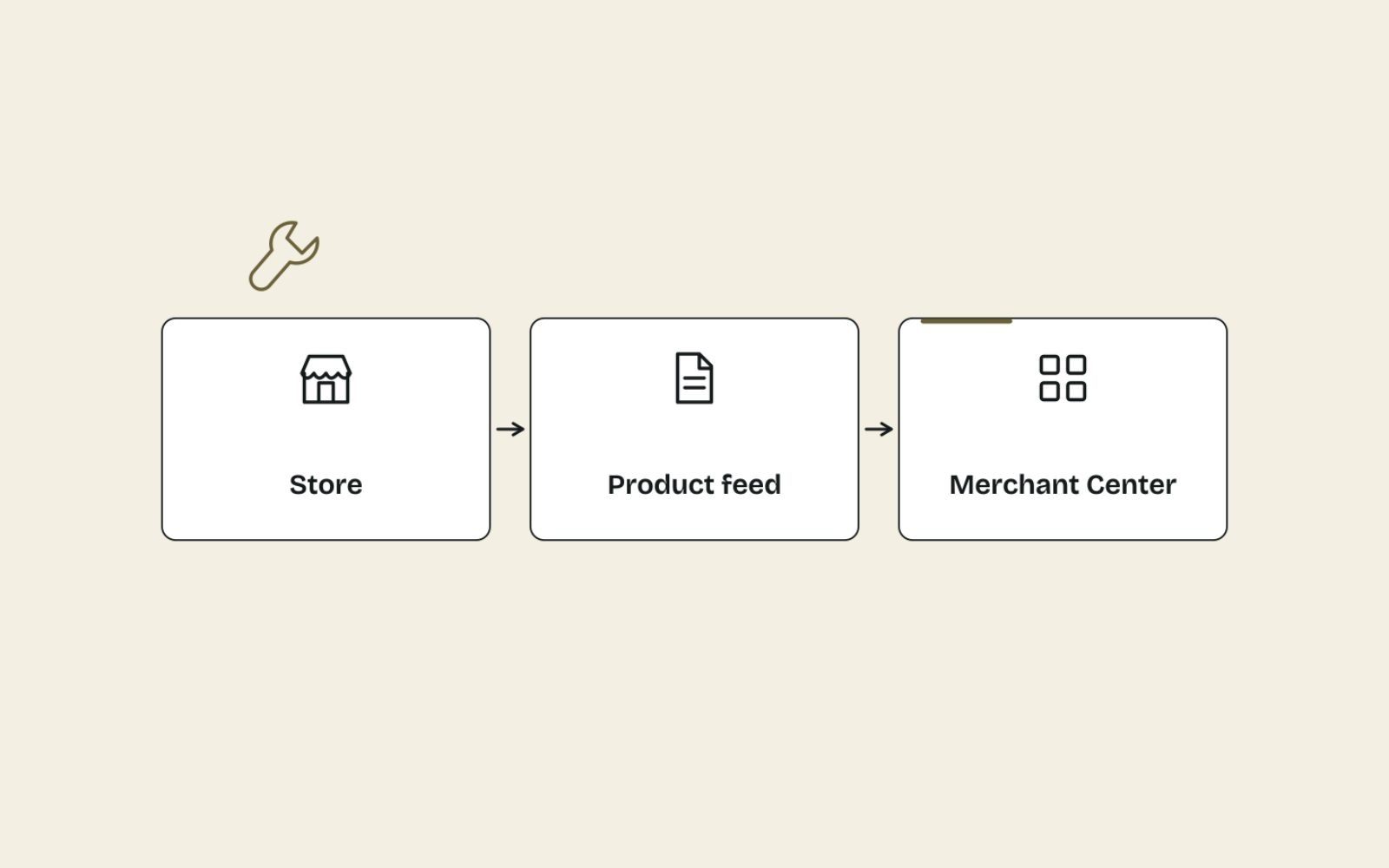
The most common mistake I see is editing a product directly in Merchant Center when the data comes from a store integration. The next sync overwrites the fix, and the disapproval comes back.
- Find where the data comes from. In Shopify, that's usually the Google & YouTube app; on other platforms, a plugin, a scheduled file or the Merchant API.
- Fix the product in the store. Correct the price, barcode, vendor, images or availability in the product record itself.
- Use feed rules or a supplementary source only for feed-specific changes, such as a longer Shopping title, that shouldn't change your website.
- Re-sync or re-upload. Then check the product's status on the All products view after the next crawl.
- For account issues, request a review from the Needs attention tab. If you list through a third-party platform, Google says to request it through that platform.
If disapprovals keep returning after every sync, the cause is upstream: a theme template, an app or a pricing rule. That's a site fix, and often part of a wider technical SEO audit.
Required attributes checklist
Use this as a quick audit against the product data specification. "Required" here means required by Google for the product to be eligible; check the specification for your target countries and categories.
| Attribute | Required when | Common mistake |
|---|---|---|
| id | Always | Changing IDs on re-import, so the same item looks like a new product |
| title | Always (or structured_title) | Internal product names, promotional text, all caps |
| description | Always (or structured_description) | Pasted shipping policies and links |
| link | Always | Pointing to a redirect or the home page |
| image_link | Always | Sale badges and watermarks on the image |
| availability | Always | Not updated when stock runs out |
| availability_date | When availability is preorder | Left blank on preorders |
| price | Always | Doesn't match the page or the selected variant |
| brand | New products, except books, movies and music | "N/A" or "Generic" as placeholders |
| gtin | When the manufacturer assigned one | Made-up or reused barcodes |
| mpn | When there's no GTIN | Using your own SKU as the MPN |
| condition | When the product is used or refurbished | Selling refurbished stock as new |
| item_group_id | Variants, in listed countries and for free listings | Each variant submitted with no group |
| shipping | In listed countries, including Australia (account settings preferred) | No shipping settings at all |
For the shipping row, Google's shipping attribute guidance lists Australia among the countries where shipping costs are required, and recommends account-level shipping settings first, with the attribute used only for overrides.
Write feed titles that match how people search
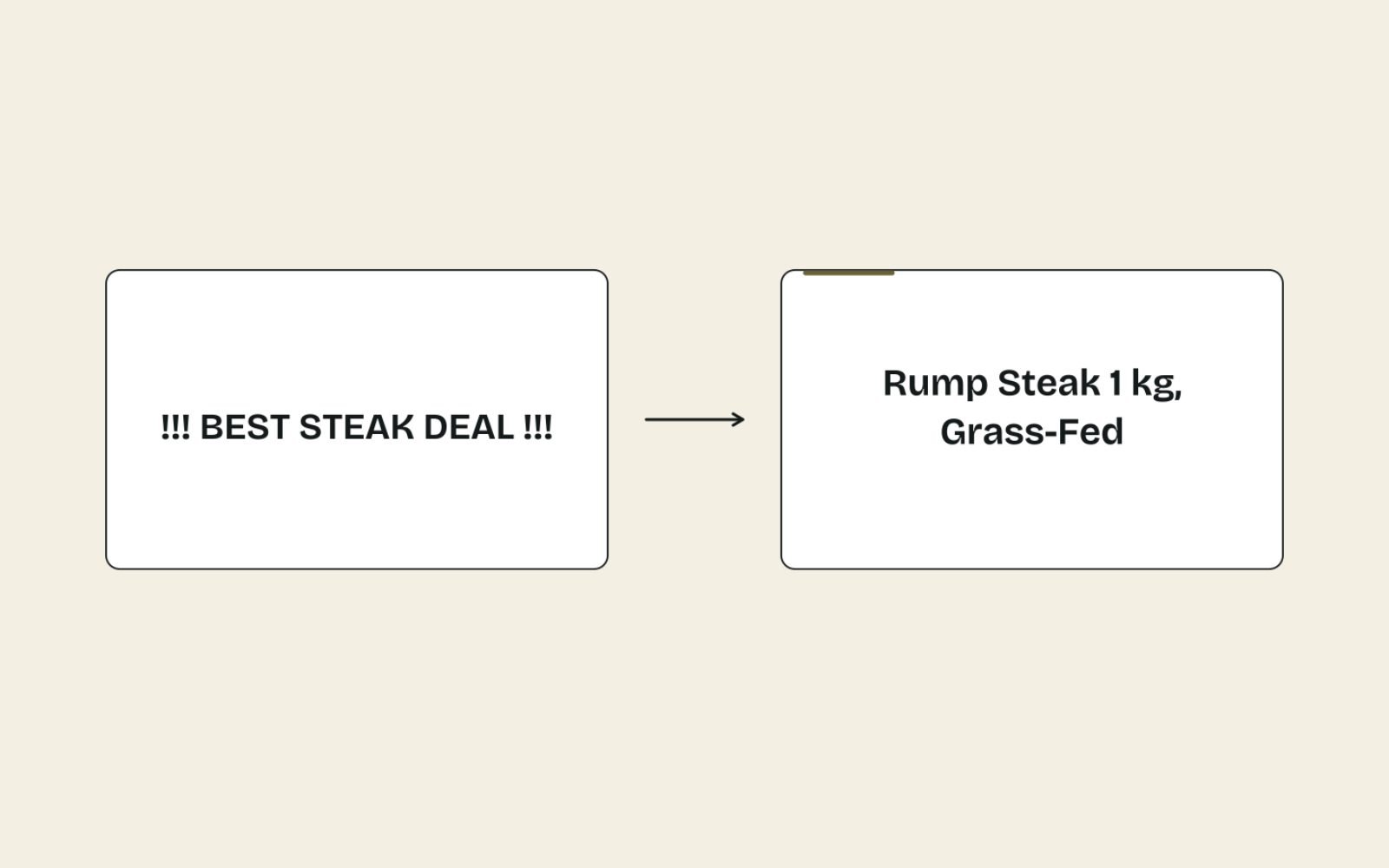
An approved product with a vague title still struggles to show. Your feed title is the main text Google uses to match a product to a search, so I treat it as content, not data entry, and write it alongside the product page copy as part of my feed and product copywriting.
Google's guidance on writing product titles says you can use up to 150 characters, that people usually notice only the first 70 or fewer, and that promotional text, shipping details, all caps and your company name don't belong in the title.
Feed title formulas and examples
| Category | Before | After |
|---|---|---|
| Meat | BRISKET SPECIAL!!! Free Delivery | Whole Beef Brisket, Packer Cut, Grass-Fed, 5–6 kg, Vacuum Sealed |
| Fitness | FlexBell Pro | [Brand] Adjustable Dumbbells Pair, 2.5–24 kg, Quick-Select Dial, Black |
| Apparel | Summer Dress | [Brand] Women's Linen Midi Dress, Short Sleeve, Sage Green, Size 10 |
| Coffee | Morning Ritual Blend | Ethiopia Yirgacheffe Coffee Beans, Light Roast, Whole Bean, 1 kg |
| Skincare | Dew Drops - Best Seller | [Brand] Hyaluronic Acid Face Serum, Fragrance-Free, 30 ml |
The pattern is the same idea as on the product page: product type and the deciding attributes first, then variant details such as size and colour. The feed title can carry more attributes than your H1, because it has more room and no design to fit.
If you use AI to write titles or descriptions
The product data specification asks you to submit generative-AI titles and descriptions through structured_title and structured_description, with the digital_source_type set to trained_algorithmic_media. Plain title and description are for everything else. I still check every AI-drafted title by hand for accuracy, because a wrong weight or size is a mismatch waiting to happen.
Write feed descriptions that stick to the product
The description attribute allows up to 5,000 characters, but more isn't better. Google wants it to describe the product only: features, specifications, materials, size, colour and what’s included. On Carnivore Society, 212 Merchant Center descriptions have been written or refreshed this way, with writers I brief and edit.
Before:
Shop the BEST brisket online! Family owned since 1998. Free
delivery over a set spend, see our shipping page at example.com.
Better than supermarket brisket!
After:
Whole beef brisket with the point and flat joined, fat cap left
on. 5 to 6 kg, grass-fed, vacuum sealed and delivered chilled.
Suited to low-and-slow smoking or oven braising for 12 to 15
people. Freezes well for up to 6 months.
The "before" breaks several of Google's description rules at once: all caps for emphasis, a link, shipping terms, company history and a comparison with other products. The "after" is plain, factual and matches the product page word for word on the key facts.
Keep the feed and your site in sync, then measure
Disapprovals come back when the site and feed drift apart. A light routine stops that.
- Weekly: check the Needs attention tab and the count of approved products.
- After every price change or sale: confirm the feed synced and sale dates are right.
- Monthly: check the Merchant listing report under Shopping in Search Console for structured data errors, and spot-check 10 product pages against their feed entries.
- After theme or app changes: confirm price and availability still render in the page HTML.
How to tell it worked
- Approved product count in Merchant Center, tracked weekly. This should rise and stay up.
- Organic Shopping traffic in GA4: free listing clicks usually appear in the Organic Shopping default channel group in the Traffic acquisition report.
- Conversion rate of Shopping visitors. If clicks rise but sales don't, look at the landing pages. Visitors arrive with the feed title in mind, so the page must deliver exactly that, and conversion rate optimisation testing helps find what's stopping them.
Your collection pages benefit from the same clean-up. A tidy feed taxonomy, using product_type values that mirror your site, pairs well with collection page content and structure.
The bottom line
Treat your feed like content. Fix disapprovals at the source, starting with the issues that affect the most products, and keep your site, structured data and feed in agreement.
Then put the same care into feed titles and descriptions that you put into product pages, because approved but vague products rarely get shown.
If you'd like a second pair of eyes on your feed and product copy, get in touch and tell me what Merchant Center is flagging.
FAQs
1. How long does it take for Merchant Center to approve a fixed product?
For price mismatches, Google says Googlebot re-crawls disapproved products over the next few hours or days. Account-level setup and policy reviews can take up to 7 days. Re-uploading corrected data promptly is the fastest route.
2. Why does Merchant Center say my price doesn't match?
The feed price differs from the price on the landing page or in its structured data. Common causes are delayed feed updates, wrong sale dates, the wrong variant price, a different currency, or a price added by JavaScript that Googlebot doesn't see in the HTML.
3. What if my products don't have GTINs?
If the manufacturer never assigned a GTIN, such as for handmade, custom or private-label products, set identifier_exists to no. Don't invent a GTIN, because incorrect identifiers cause disapprovals.
4. Do I need Google Ads to appear in Google Shopping?
No. Free listings let approved products appear on Google at no cost, including in the Shopping tab. Shopping ads are a separate, paid option that uses the same product data.
5. Can I use AI to write Merchant Center product titles?
Yes, but Google asks you to submit AI-generated titles and descriptions using structured_title and structured_description with the digital source type set to trained_algorithmic_media. Check every one for accuracy before it goes live.
6. Why do my disapprovals come back after I fix them?
Usually because the fix was made inside Merchant Center while the data comes from your store. The next sync overwrites it. Fix the product in your store or source feed, then re-sync.